Historical note: This article was written in 2015 based on the old Dart toolchain (Dart Editor + Dartium). Dart has since moved entirely to the Flutter ecosystem and the
dartCLI toolchain. Content is kept for reference only.
You can launch and debug Android web applications built with Dart without pre-compiling to JavaScript. To do this, you need Dart Editor and Dart Content Shell. Dart Content Shell is automatically installed on the Android device.
Prerequisites
- An Android device (phone or tablet)
- USB cable
- Chrome browser installed on both computer and Android device
Part 1: Setting Up Your Environment
Step 1: Set up your computer
Download and install Dart Editor: Download Dart Editor (Note: this download page is no longer maintained)
Step 2: Set up your Android device
Enable USB debugging: Set up remote debugging
Step 3: Connect the device
Connect your device via USB: Connect your device via USB
Step 4: Set up port forwarding
Unless you are on a home network, you may need to set up port forwarding. See: Remote Debugging on Android with Chrome
Step 5: Launch your app on the Android device
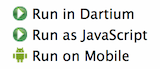
Right-click an HTML file in Dart Editor, and select the mobile run option:
Troubleshooting:
- If using port forwarding, make sure Chrome is running
- If Dart Editor still cannot detect your device (shows “No phone or USB development phone found”), try unplugging and re-plugging the device
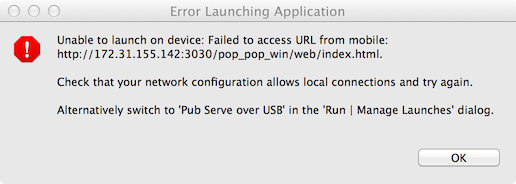
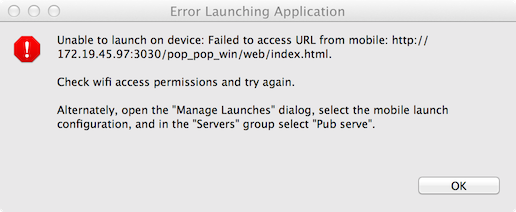
- If you see either dialog below, follow the on-screen instructions:
Step 6: Debug your app
With your app running on the Android device, set breakpoints in Dart Editor. When you see “remote” connected in the Debugger view (Tools > Debugger), you can start debugging.
FAQ
What apps are downloaded to the Android device?
In the first Dart Editor session, two apps are downloaded:
- Dart Content Shell — a streamlined Chromium with the Dart VM, where your app runs during testing
- Connection test app — detects problems accessing the web server
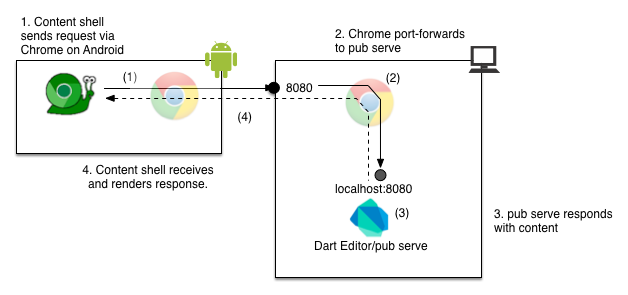
What is port forwarding, and why do I need it?
What’s the difference between “Pub serve over USB” and “Embedded server over WiFi network”?
In the Manage Launches dialog:
- Pub serve over USB: Port forwarding over USB. Recommended when behind a firewall, on public WiFi, or when the computer and device are on different networks
- Embedded server over WiFi network: Uses the embedded server in Dart Editor. Suitable for home networks without a firewall, no port forwarding needed
Part 2: Running Sample Code
Start the Editor
Navigate to the extracted folder and double-click DartEditor.
Get the sample code
| |
Open the sample
In Dart Editor, choose File > Open Existing Folder and navigate to the cloned directory.
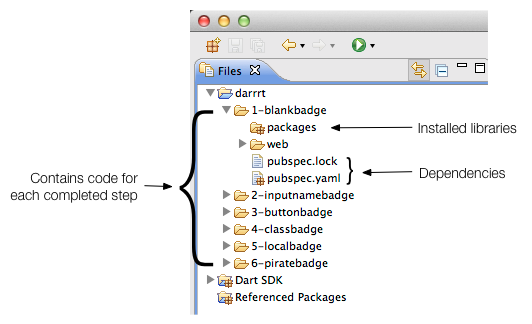
Run the skeleton app
Open 1-blankbadge, right-click piratebadge.html, and select Run in Dartium.
See: Dart Codelab