The notification system is a critical channel for user-app interaction on Android — it keeps users informed of important events even when the app is not in the foreground, such as incoming messages or calendar reminders. Notifications received a major overhaul in Android 4.1 (Jelly Bean) and continued to see refinements through Android 5.0 (Lollipop). Since 4.1, Android supports action buttons at the bottom of notifications, allowing users to perform common tasks directly without opening the app.
Note: This article was written for the Android 4.1–5.0 era APIs. Starting from Android 8.0 (API 26), all notifications must be assigned to a Notification Channel. Android 13 (API 33) introduced the
POST_NOTIFICATIONSruntime permission. The code examples below useNotificationCompatfor backward compatibility; visual results may vary across devices.
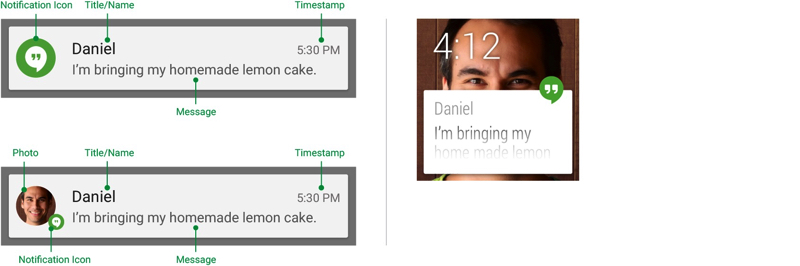
Basic Usage
All examples use android.support.v4.app.NotificationCompat. Creating a basic notification takes only a few lines:
| |
Click Behavior and Activity Navigation
To navigate to an in-app page when the user taps the notification, attach a PendingIntent:
| |
One detail often overlooked: android:excludeFromRecents controls whether the Activity appears in the recent tasks list.
| |
There are two common scenarios for notification-driven Activity navigation.
Regular Activity (with Back Stack)
Use when the notification launches an Activity that is part of the app’s normal workflow — the user should be able to press back to return to the previous screen. Build a proper back stack using TaskStackBuilder:
| |
Special Activity (No Back Stack)
Use when the Activity is only reachable from the notification — it serves as an extension of the notification, displaying information that doesn’t fit in the notification itself:
| |
Updating and Canceling Notifications
Avoid creating a brand new notification every time. Instead, update an existing one — either modify its content or append new information. To make a notification updatable, assign a unique ID when publishing via NotificationManager.notify(ID, notification). To update, rebuild the NotificationCompat.Builder and re-publish with the same ID:
| |
A notification is removed under the following conditions:
- The user manually clears it or taps “Clear All” (if the notification is dismissable)
setAutoCancel()was set and the user tapped the notificationNotificationManager.cancel(ID)was called — this also removes ongoing notificationsNotificationManager.cancelAll()was called — removes all previously published notifications
Notification Styles
Android 4.1 introduced Big Views, allowing notifications to display richer content.
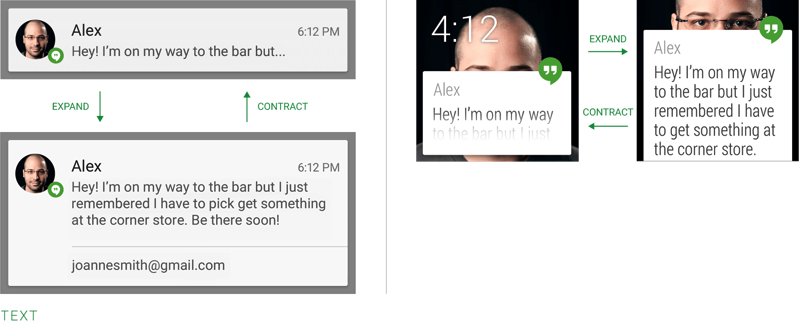
BigTextStyle
For displaying lengthy text:
| |
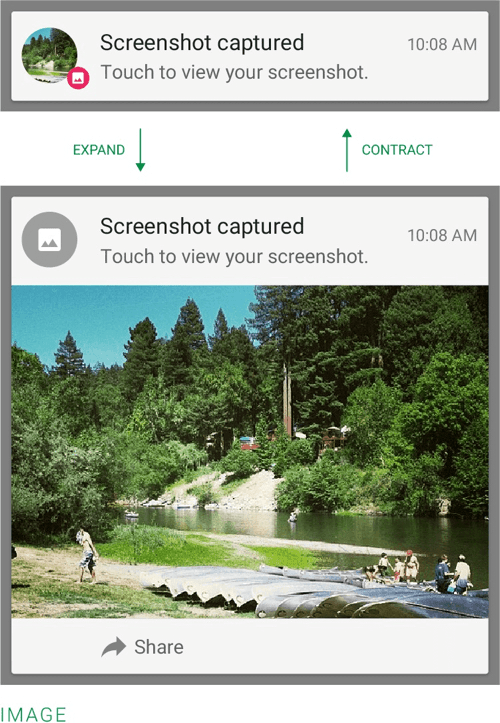
BigPictureStyle
For displaying a large image:
| |
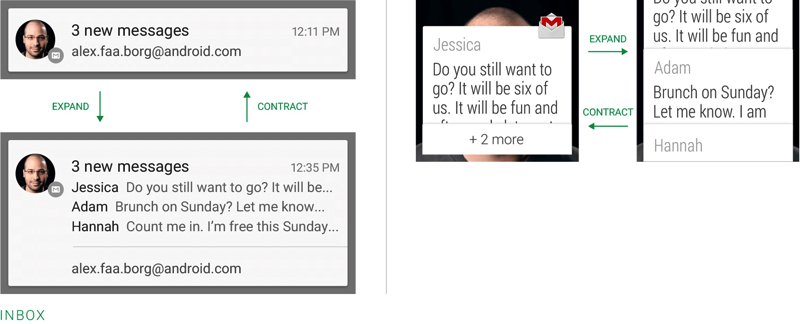
InboxStyle
For displaying a list of multiple messages:
| |
Progress Bar Notifications
Notifications can include a progress bar. If you can estimate the total duration and current progress, use determinate mode to show a percentage. Otherwise, use indeterminate mode for a continuous animation.
| |
References
- Android Notification Overview (developer.android.com)
- Create a Notification (developer.android.com)
- Start an Activity from a Notification (developer.android.com)
- NotificationCompat API Reference (developer.android.com)
- NotificationCompat.Builder API Reference (developer.android.com)
- TaskStackBuilder API Reference (developer.android.com)
- Notifications Design Guide (developer.android.com)